A short step-by-step guide to create a round door hole in a wall while maintaining a clean topology.
Assumptions
Directions and axes are specified based on an orthographic front view. If you work in a different perspective use your axes accordingly.
Preparing the base object
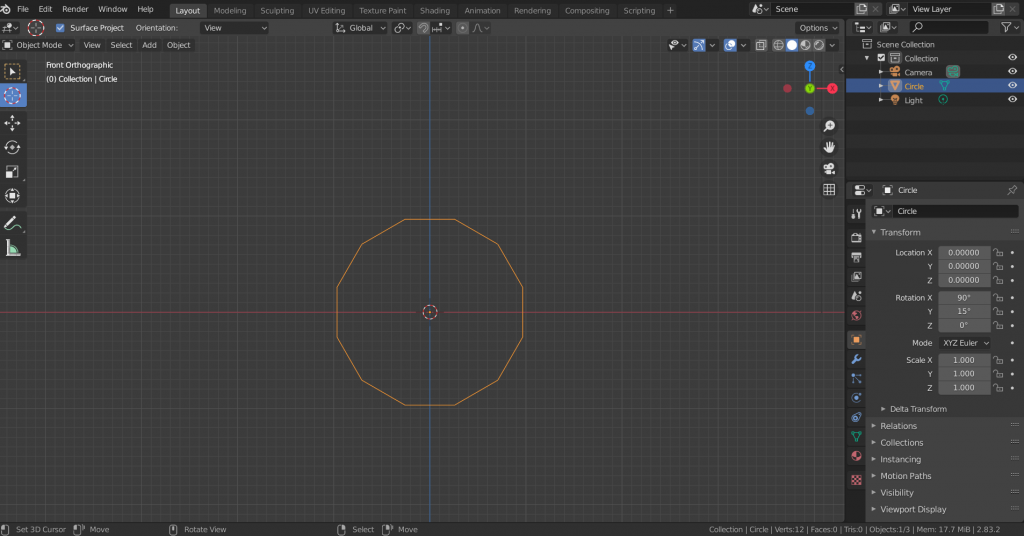
1 ) Create a circle (Shift-A > Mesh > Circle)
2 ) Reduce the vertex count to a comfortable number (I use 12 to limit complextiy)
3 ) Rotate it by 90 degree (R > X > 90) around the x-axis. Note: I worked on this object in orthographic front view (NUMPAD 1 by default) to get a better overview of the final wall piece. If you have a different perspective use the according axis.
4 ) Rotate along y-axis by 15 degree to have two y-axis aligned edges at the side (see image 1). The purpose of this step is to obtain a clean edge flow later on.
Creating the wall geometry
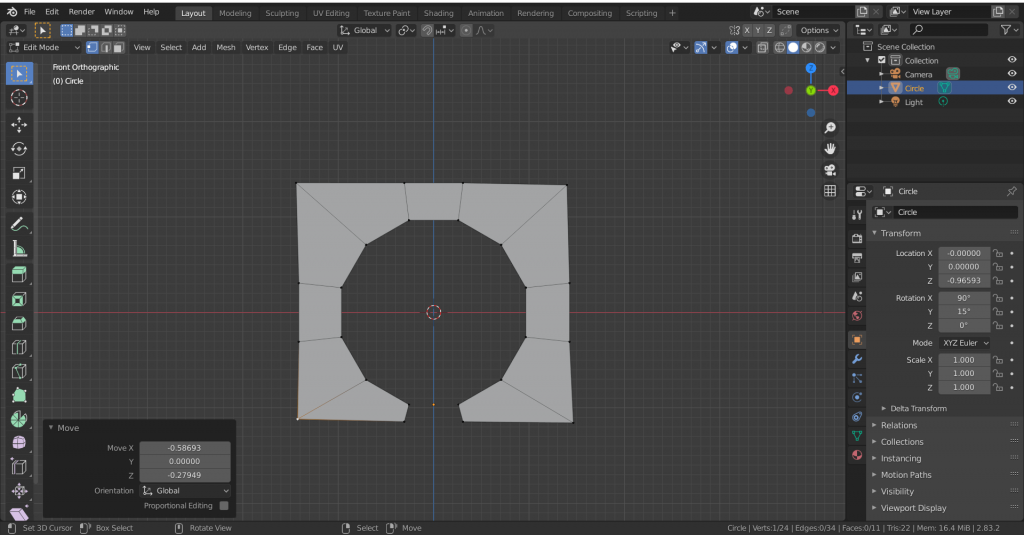
1 ) Enter edit mode and remove the edge on which the circle “stands” on. This makes space such that another object, e.g. a player, can pass the door.
2 ) Select all vertices and extrude (E) and confirm immediately without moving the mouse
3 ) Select the newly created edge loop and scale it along the xz-plane (S > Shift-Y)
4 ) Move vertices into a roughly quadratic wall shape (see image 2)
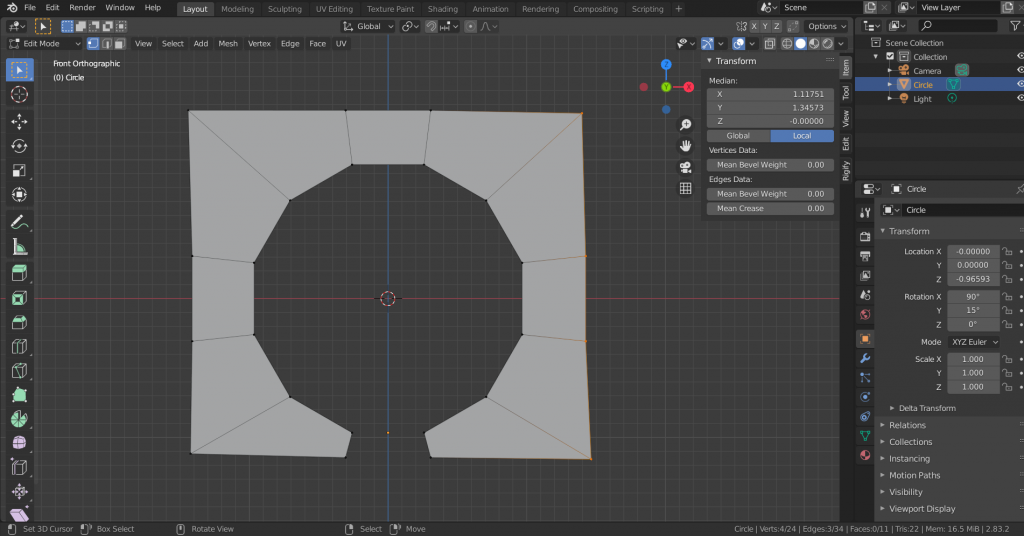
5 ) Fine tune vertex position by selecting border vertices and scale by zero (S > X > 0 for left and right border, S > Z > 0 for top border). This brings the vertices onto the same height (image 3).
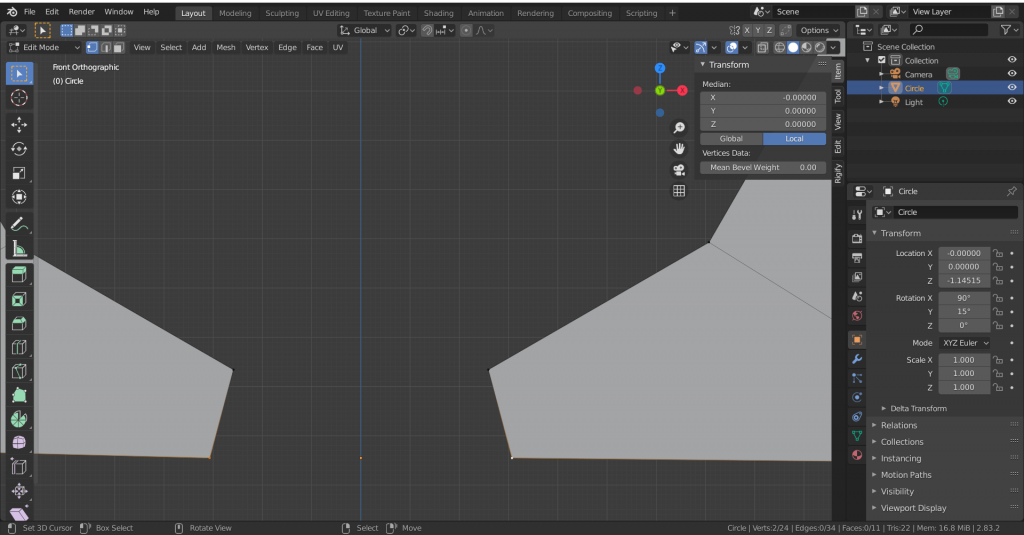
6 ) Adjust origin to be on the same level as the bottom border by selecting edge vertices at the gap and fill (F) with edge.
7 ) Select this edge, move 3D cursor to the edge, go into object mode and use the menu to set origin to 3D cursor location. Afterwards, delete the created edge (image 4).
Further optional steps
- Use a solidify modifier to create depth to the mesh.
- Collapse vertices at the door gap such that the door does not have a thick border on the inside when solidified.